
This is the fastest way to get a DJI RC talking to Hover. It's a web page that opens inside Pilot 2 itself, reads your controller and aircraft serials over DJI's own bridge, and connects the controller to your organization after a one-time email sign-in. If you'd rather configure a custom RTMP destination by hand instead, see the enterprise Pilot 2 guide.
What you need: a DJI RC running Pilot 2 with an aircraft paired (the aircraft can be powered off during setup), and a work email. You don't need a Hover account first; signing in for the first time creates your organization automatically.
Opening the adopt page
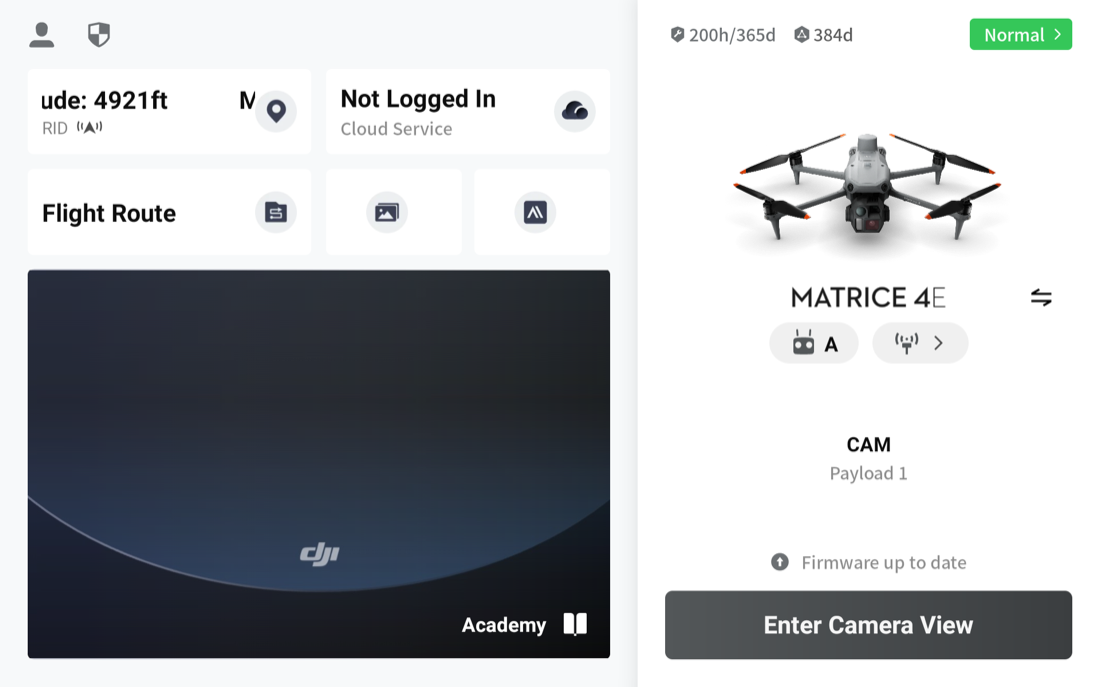
From the Pilot 2 home screen, tap the Cloud Service tile, then Open Platforms in the Cloud Services list.
This opens DJI's Third-Party Cloud Services screen: a single URL field. Type https://nebli.ai and tap Connect.
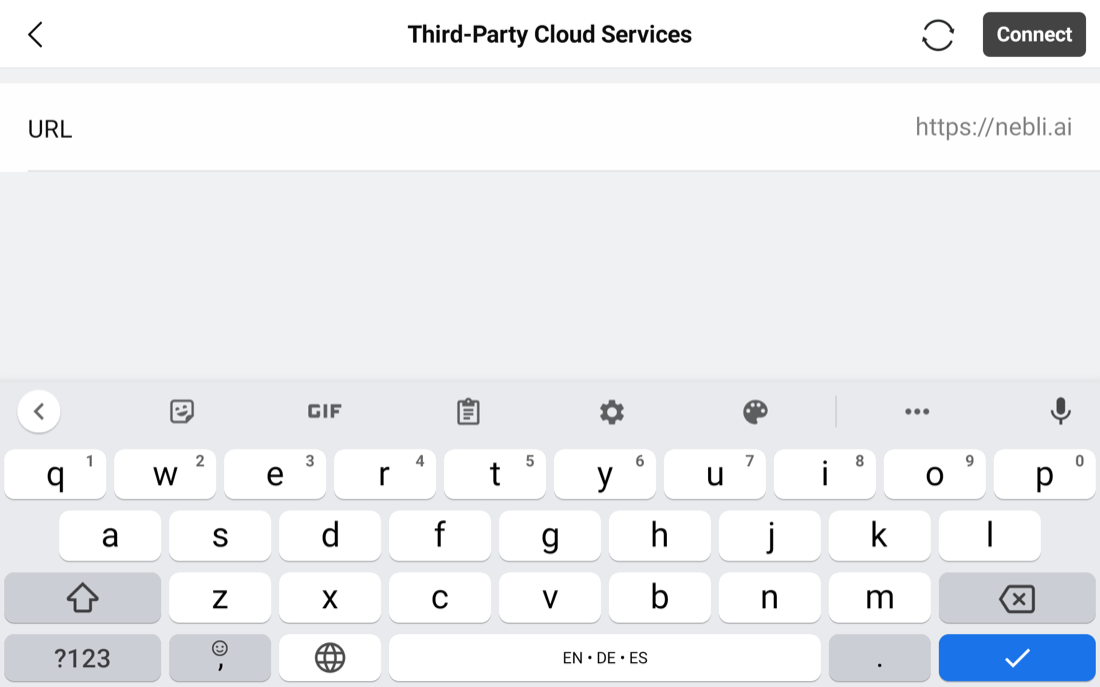
https://. The bare domain alone doesn't connect.The scheme is required. Typing just nebli.ai looks fine in the field but silently does nothing when you tap Connect. Include https:// and it opens correctly.
Pilot 2 detects it's loading a Hover page and takes you straight to the sign-in screen below. There's nothing else to configure on the DJI side.
Signing in
The first screen shows your controller and aircraft, already detected over Pilot 2's bridge:
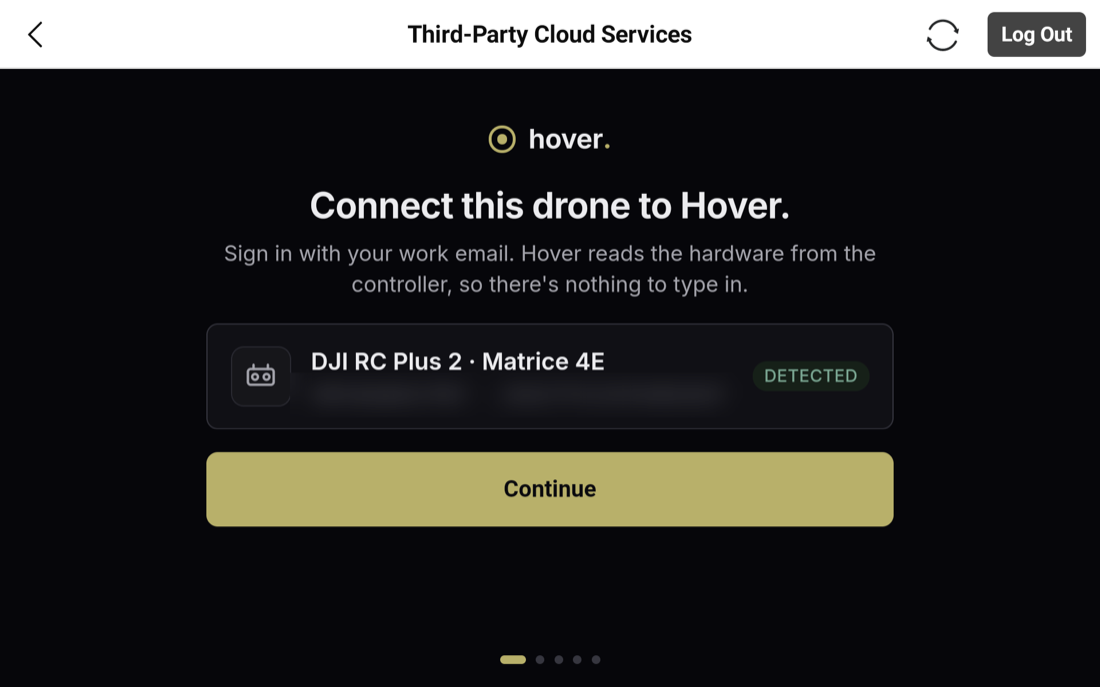
Tap Continue, enter your work email, and tap send:
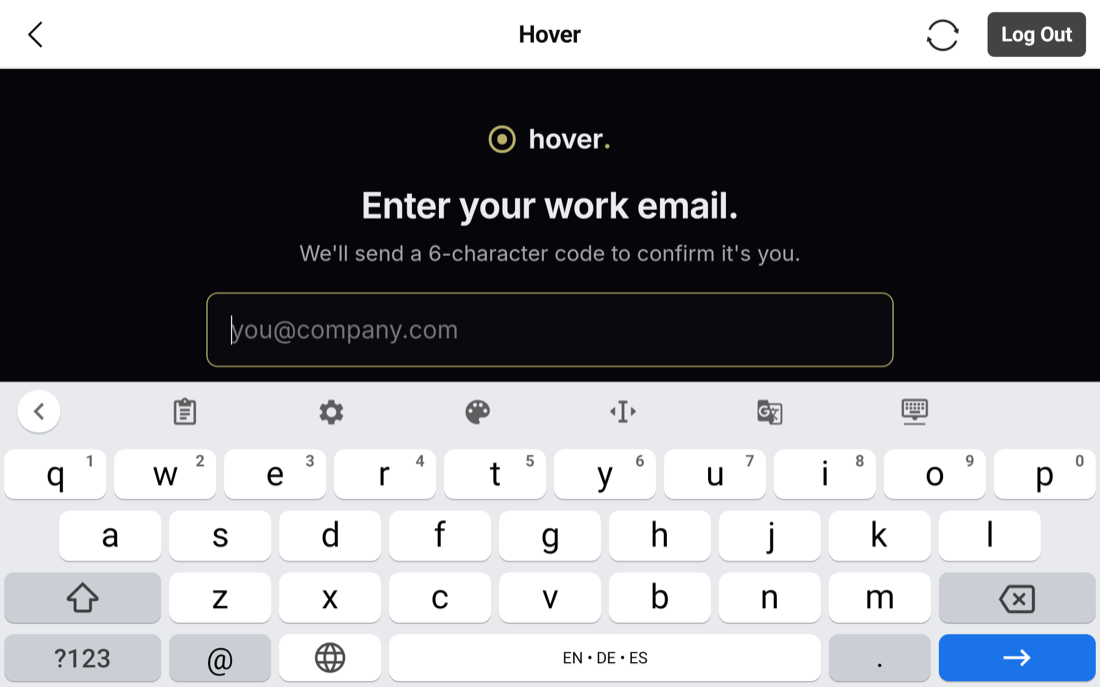
Hover emails a 6-character code (letters and numbers, so it won't always look like a plain number). Enter it on the next screen:
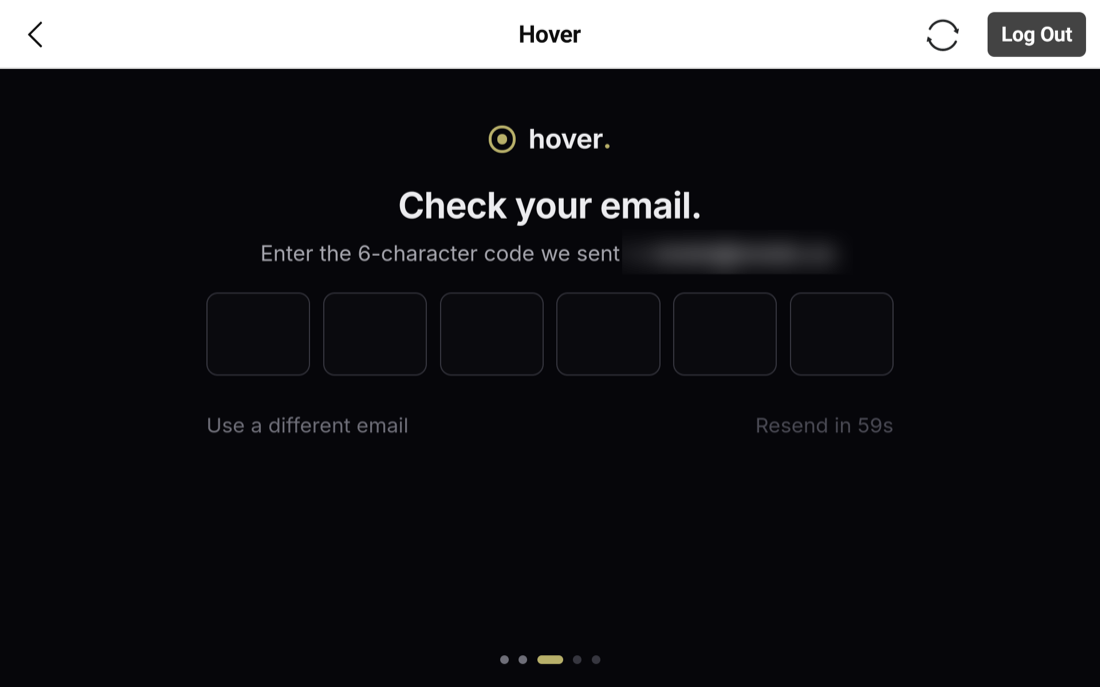
Type the email carefully. There's no directory check against an existing team. If you mistype your work email, Hover creates a brand-new organization for that address instead of erroring. It just won't be the one your teammates are already in.
Confirming the drone
On a controller that isn't already connected to anything, verifying the code takes you to a confirm screen: a headline naming the detected aircraft (or the controller, if the aircraft is off), a trust line showing the serials, an editable drone name, and an optional deployment to assign it to. Tapping Adopt drone completes the connection.
If your organization already has more than one drone waiting to be connected, adopting shows a picker first: a plain list of the pending drones, keyed by the name you gave each one when you created it in the dashboard. Pick the one this controller flies.
Not yet captured on hardware. These two screens are described here from Hover's own current source, not from a live screenshot. Capturing them needs a controller that isn't already connected to anything, and the dashboard doesn't yet have a button to disconnect one. This page will get real screenshots once that ships.
Already connected
If this controller has connected to Hover before, you land here instead of the confirm screen:
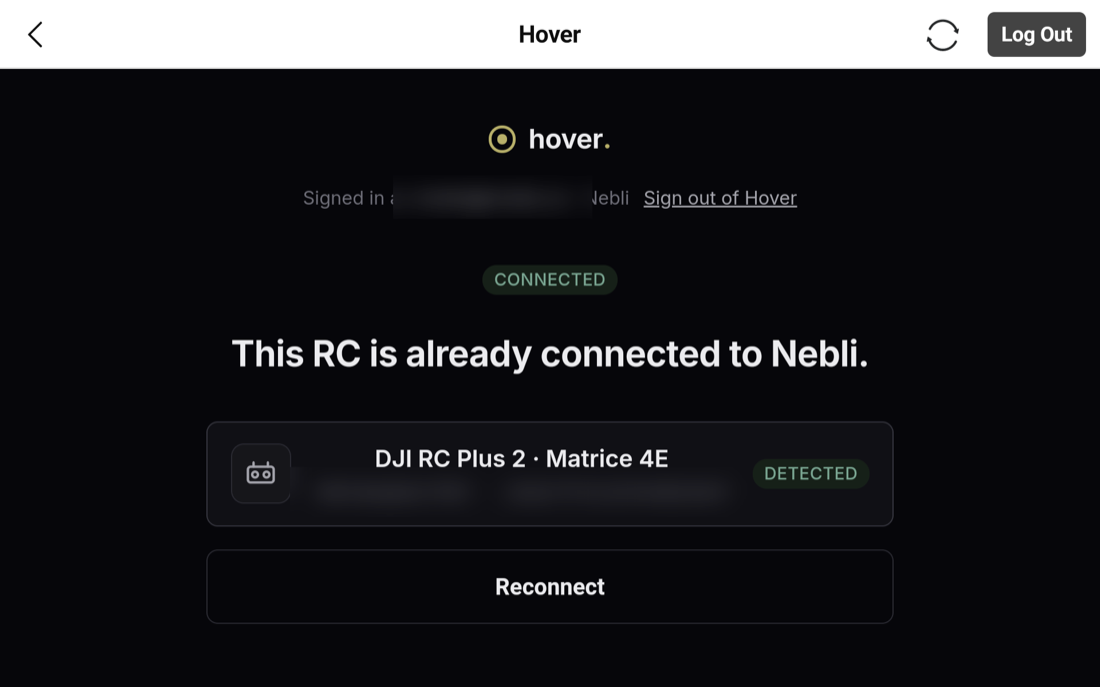
If your organization has another drone waiting to connect, this screen lists it and lets you move the controller onto it. The move happens immediately when you tap it, with no separate confirmation step. Otherwise you'll see a single Reconnect button, which re-issues the controller's connection credential without changing what it's connected to. That's useful if the connection ever looks stuck:
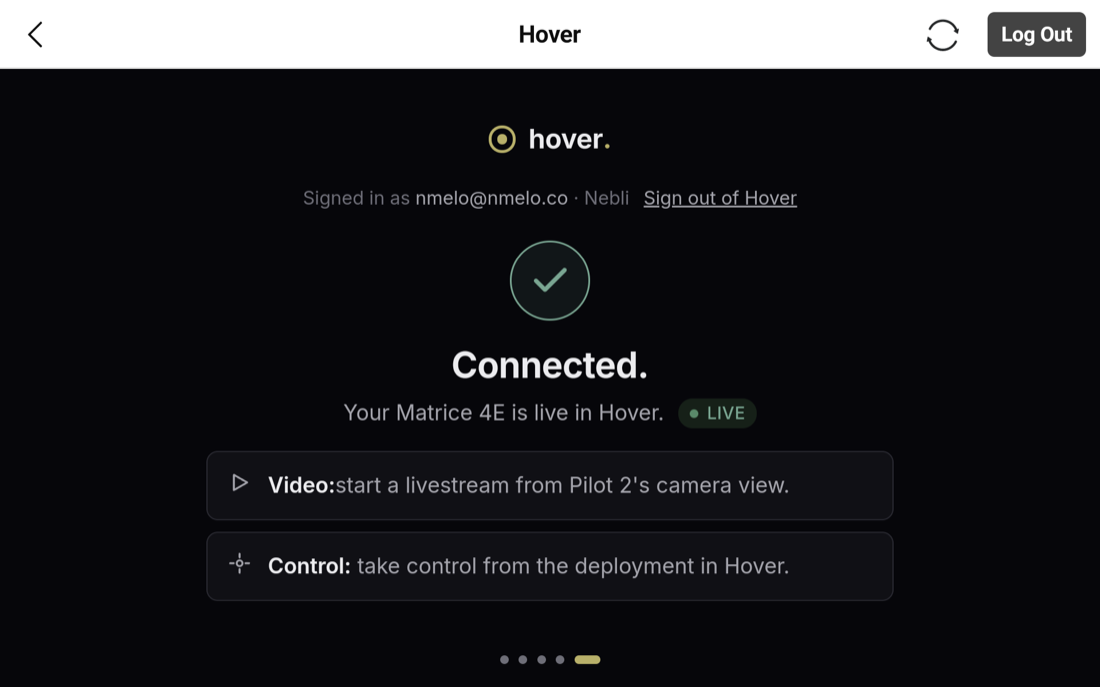
A controller already connected to a different organization shows a plain "already connected" message with no action available. Hover doesn't reveal which organization holds it.
Where the feed shows up
Adoption connects video only. Start the livestream from Pilot 2's camera view the same way you always do, and it appears in that asset's deployment view in the Hover dashboard. Gimbal control and flight telemetry aren't part of this path. The aircraft isn't bound to Hover as a controlled asset, just streaming video to it.
Common questions
Do I need a Hover account before I start?
No. The first time you verify a work email through the adopt page, Hover creates your organization automatically. There's nothing to sign up for beforehand. Just type your work email carefully, since a typo creates a brand-new organization rather than showing an error.
Does adopting a controller give Hover flight control?
No. Adoption connects video only. Your aircraft isn't bound as a controlled asset. You fly it exactly as you do today, and Hover just receives the live feed once you start streaming from Pilot 2's camera view.
What happens if I adopt a controller that's already connected to a different drone?
If your organization has another drone waiting to be connected, you can move (rebind) the controller onto it from the already-connected screen. The move happens immediately when you tap it. There's no separate confirmation step, so make sure you're picking the right drone.
Prefer configuring a custom RTMP destination by hand?
Enterprise (Pilot 2) live streaming →