You can now see everything that happened across your drones and cameras on one page, the Timeline. Your admins can also set workflows: rules that act when a reading crosses a line you choose, such as a drone flying above your altitude limit. Both are in the Nebli Drones sidebar, on every plan.
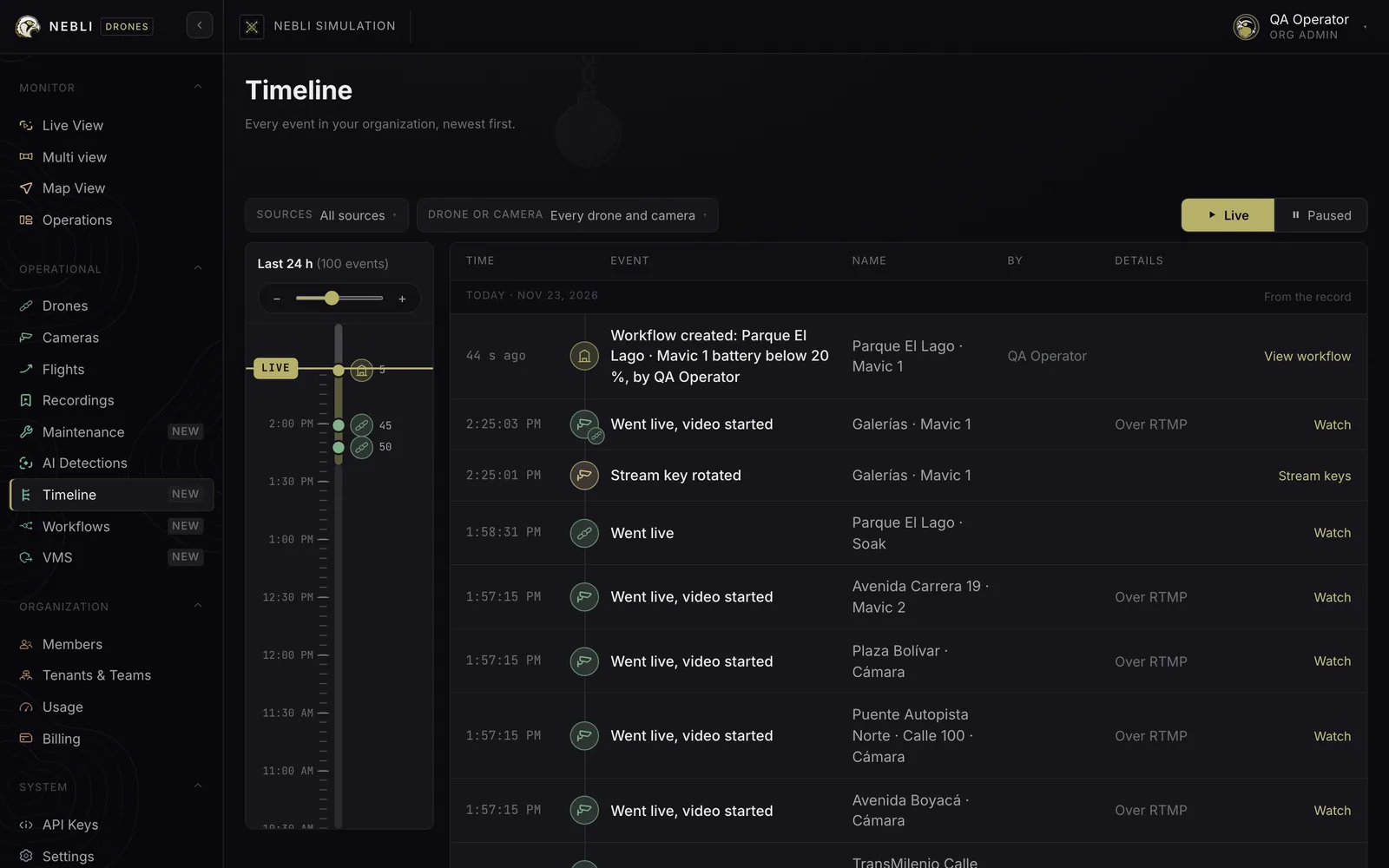
The Timeline shows every event in your organization, newest first, with one line per event: the time, what happened, the drone or camera, who did it, and the details.
Every member sees the events of the drones, cameras and sites they may view. Events about the organization itself are shown to Org Admins.
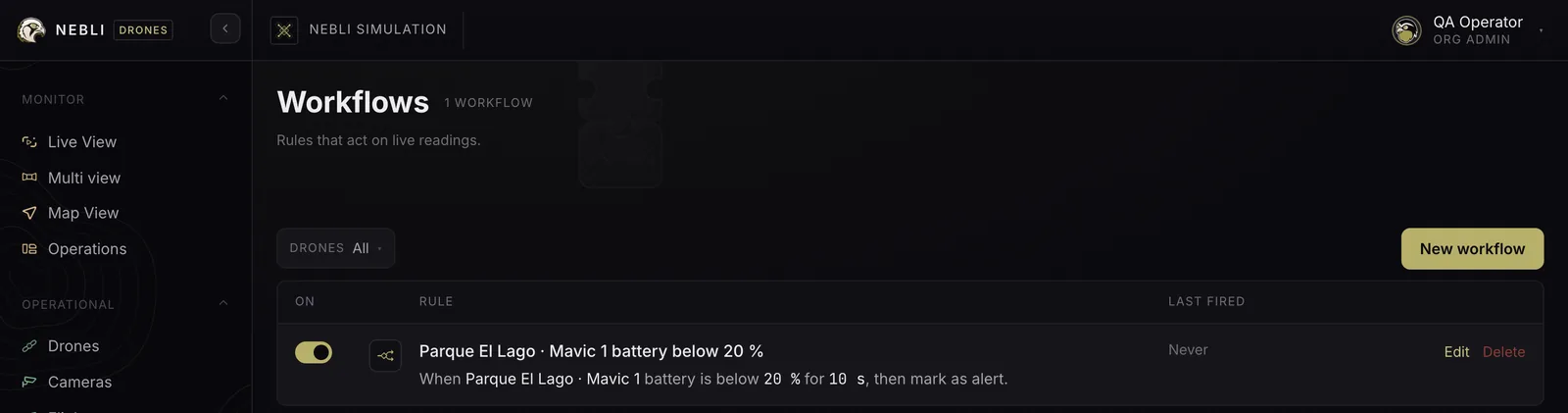
A workflow reads as one sentence: when a reading on a drone is above or below your number, for as long as you set, then the platform acts.
Org Admins, and the Tenant Admin of a drone, create and change workflows. Every other member sees them read-only.
Timeline and Workflows are in the dashboard sidebar, after AI Detections, on every plan.
We and our providers use cookies, only if you agree, to measure how our site is used and how our ads perform, and to show our ads to people who have visited our site. You can change your choice any time in Cookie settings.
Choose which cookies we may use. Necessary cookies are always on; the others stay off unless you switch them on. You can change your choice at any time.
Keep the site working and remember your choice.
Keep the site working and secure, and remember your cookie choice. They do not track you.
Cookies: nb_consent (your cookie choice, 12 months); nb_cc (your country, so we know whether to ask, 1 day).
Measure how the site is used, including session recordings.
Google Analytics 4 (Google) and PostHog (PostHog, Inc.) count visits and record which pages are viewed and how the site is used, including session recordings kept for 30 days, so we can improve it. Data is sent to the United States. Cookies: _ga, _ga_* (up to 2 years); ph_* (up to 1 year).
Measure which of our ads bring sign-ups, and show our ads to people who visited our site.
Google Ads, loaded through Google Tag Manager (Google), and our own campaign cookie measure which of our ads and campaign links lead to visits and sign-ups. Google Ads is also used to show our ads to people who have visited our site. We do not use them to show you other companies' ads. Data is sent to the United States. Cookies: _gcl_* (up to 90 days); hover_attr (up to 90 days).