Before you start
- Plan: Enterprise, or a flight-control trial on your organization. On any other plan, the card says "Playing messages from the dashboard comes with the Enterprise plan." and links to the plans.
- Drone: a DJI drone added with controller sign-in in DJI Pilot 2, carrying a speaker the drone reports. DJI lists its AS1 speaker for the Matrice 4 series.
- Your role: Operator or Team Admin on a team that has the drone, the drone's Tenant Admin, or an Org Admin. These are the people who may take control of a drone.
- To record: a browser that lets the dashboard use your microphone.
Find the card
Open the drone's live page. The Speaker card shows while the drone reports a speaker. A drone with no speaker shows no card, and someone who may not take control of the drone, such as a Viewer or anyone on a shared link, does not see it.
Take control
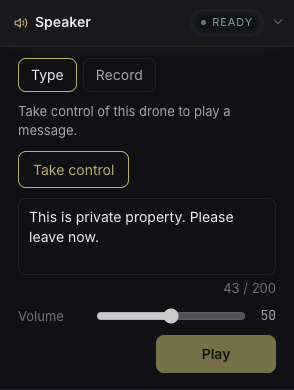
You play a message while you hold control of the drone. Until then the card says "Take control of this drone to play a message." Press Take control. The request goes to the remote controller, and the pilot approves it there.
Type a message
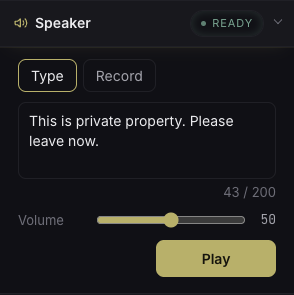
- Open the Type tab.
- Type the message, up to 200 characters. The counter shows how many you have used.
- Set Volume.
- Press Play.
The speaker reads the text aloud in its own voice. Type is available when the dashboard is in English; in any other language, record your message.
Record a message
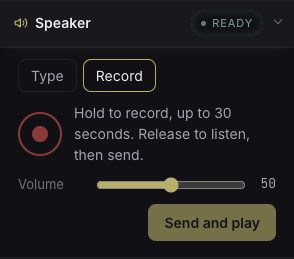
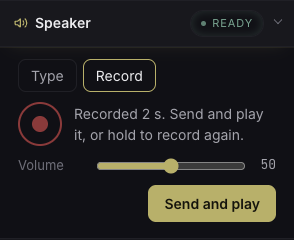
- Open the Record tab. It says "Hold to record, up to 30 seconds. Release to listen, then send."
- Hold the record button and speak. The card counts the seconds.
- Let go and listen to your recording. To record again, hold the button again.
- Set Volume, then press Send and play.
A recording plays in your own voice and your own language.
If the browser blocks the microphone, the card says "Your browser is not letting this page use the microphone. Allow the microphone for this site in the browser's address bar, then come back. Typing a message still works."
Follow the message
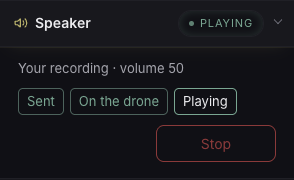
The card shows what the speaker is doing: Ready, Playing, Refused or Error. While a message is under way it moves through Sent, On the drone and Playing. The card shows a message as playing only after the drone accepts it.
Press Stop to end the message at once. Each press plays the message once; there is no repeat.
When a message does not play
| The card says | What it means |
|---|---|
| The drone did not accept the message (code …). Nothing was played. Check on the remote controller that controlling this drone from the cloud is allowed, then try again. | The drone or its controller refused it. The code is the drone's own. |
| The drone did not answer. Nothing is known to have played. Try again. | No answer came back from the drone. |
| The message was not sent. Try again. | It did not reach the drone. |
| The speaker reports a fault and cannot play. Play returns when the speaker is ready again. | The speaker itself reports a fault. |
| The recording is longer than 30 seconds. | Record a shorter message. |
On the Timeline
Each message the drone plays is one line on the Timeline, with the person and the drone: "Played a typed message" or "Played a recorded message". The line never holds the text or the recording.
What the speaker does not do
- No live talking. Nebli plays a recording or typed text, not a live voice.
- Nothing plays by itself. A detection never plays a message; a person presses Play every time.
- One message at a time, played once per press.
The operator is responsible for following local aviation, noise and privacy rules when flying at night or near people and using a speaker.