Before you start
- Any plan. Every member has the Timeline.
- What you see: the events of the drones, cameras and sites you may view. Events about the organization itself, such as an invitation or a plan change, are shown to Org Admins only.
Read the Timeline
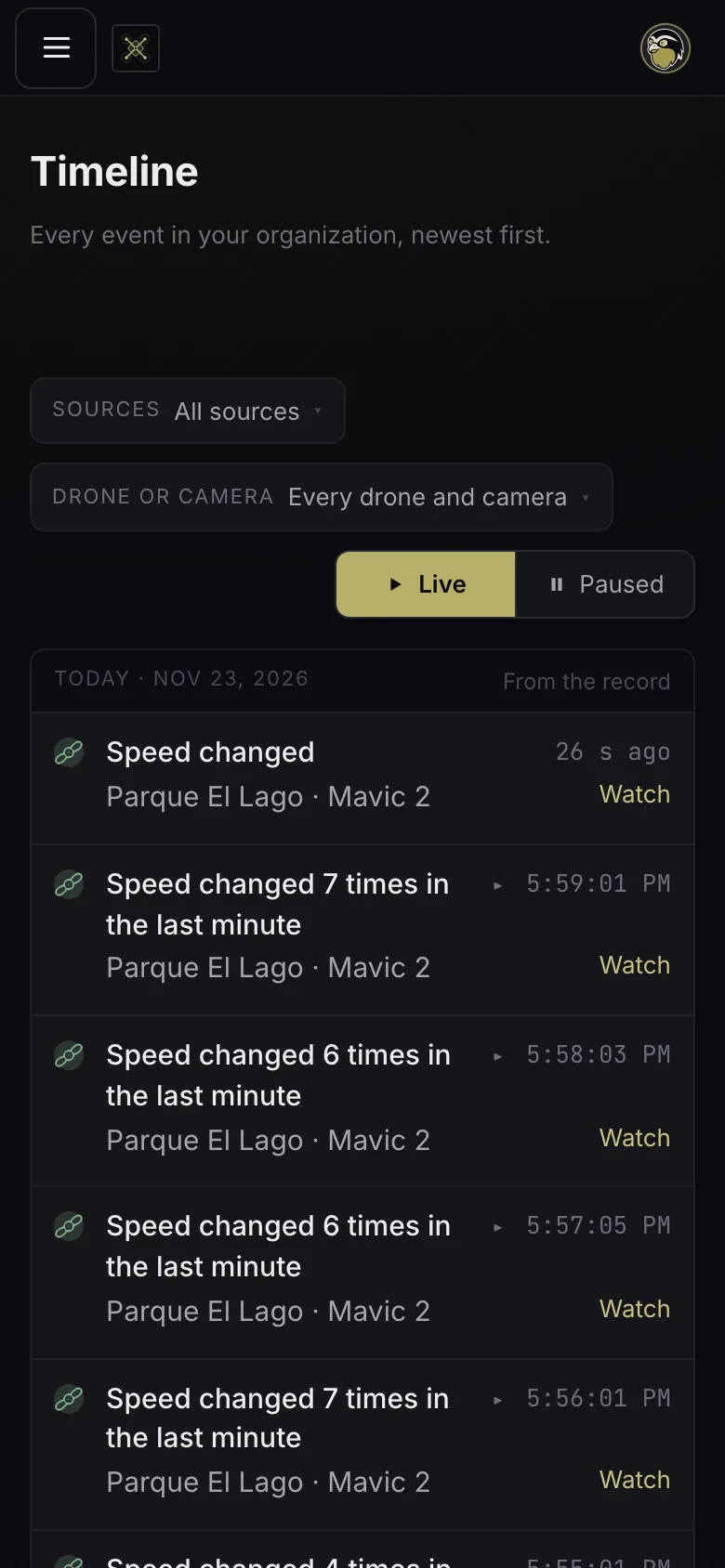
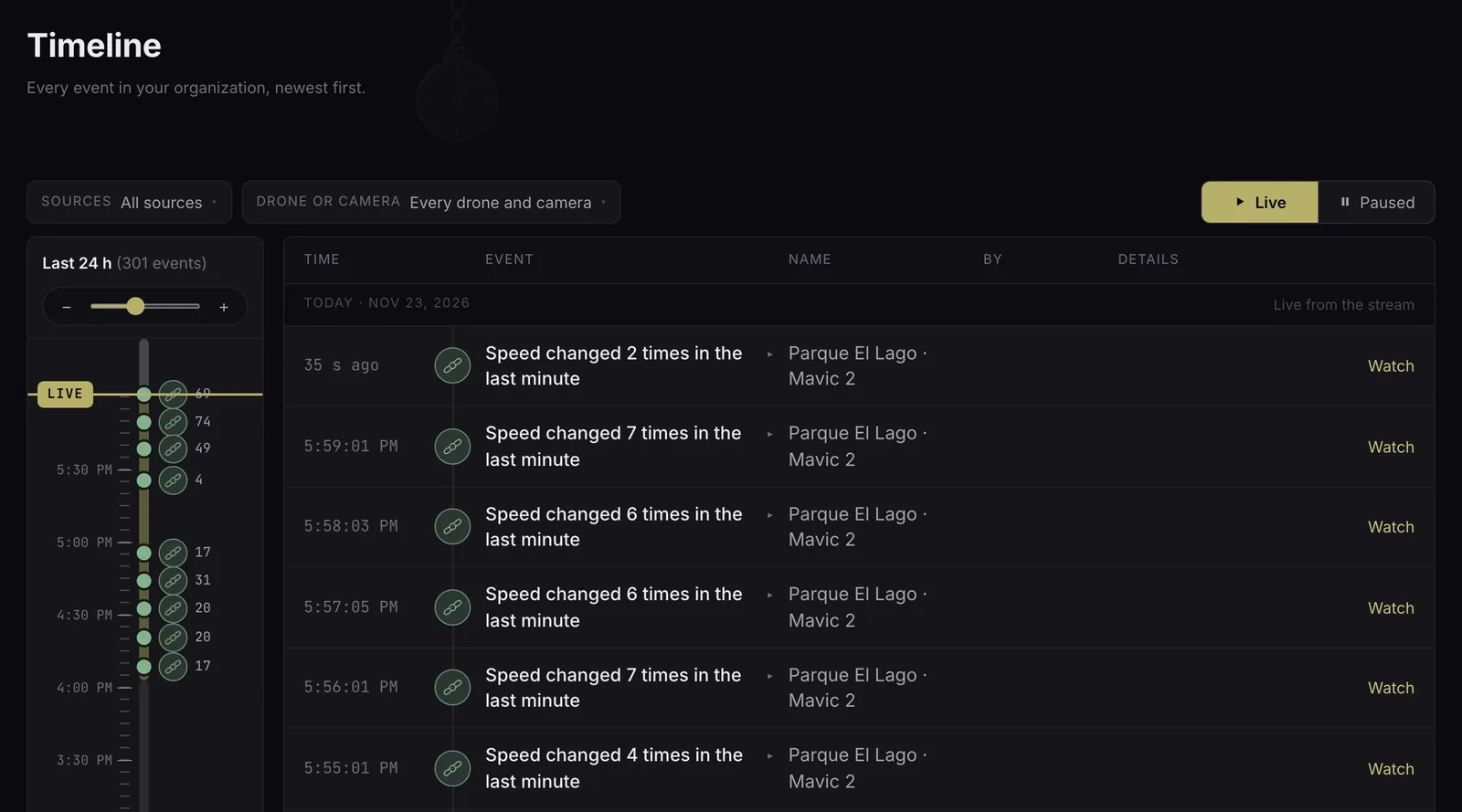
Open Timeline in the sidebar. Each line shows the time, what happened, the drone or camera (with its site), who did it, and the details. A long name wraps instead of being cut off. What happened reads in your dashboard's language; the names of drones, cameras, sites and workflows stay as they were typed.
Watch events as they happen
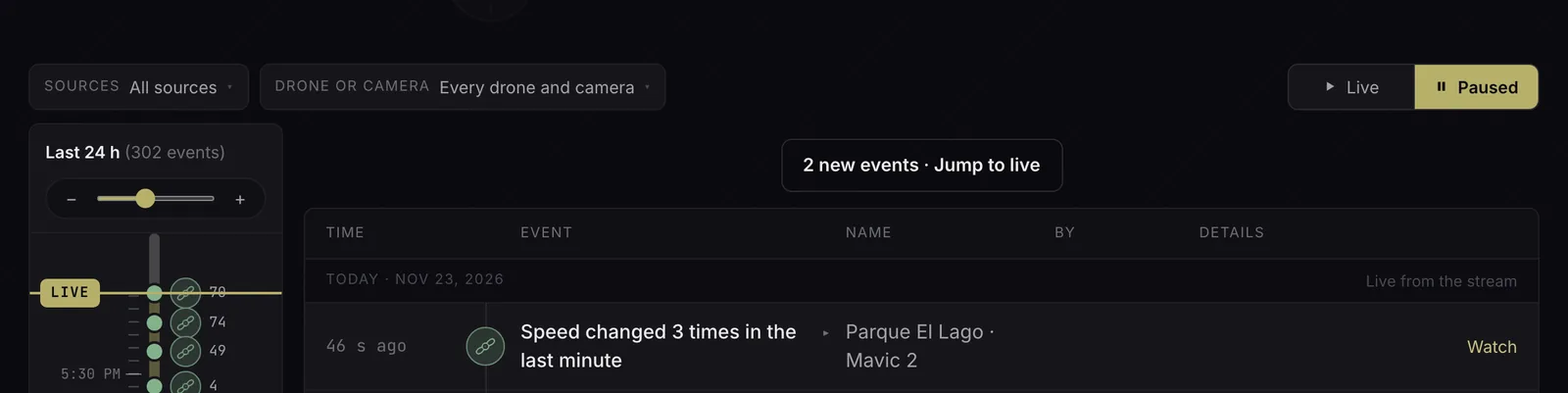
The page opens Live: new events arrive at the top while you watch. Scroll down, or press Paused, and the list holds still. New events wait above it, counted as "2 new events · Jump to live". Press that line, or Live, to go back to the newest.
Filter by source, drone or camera
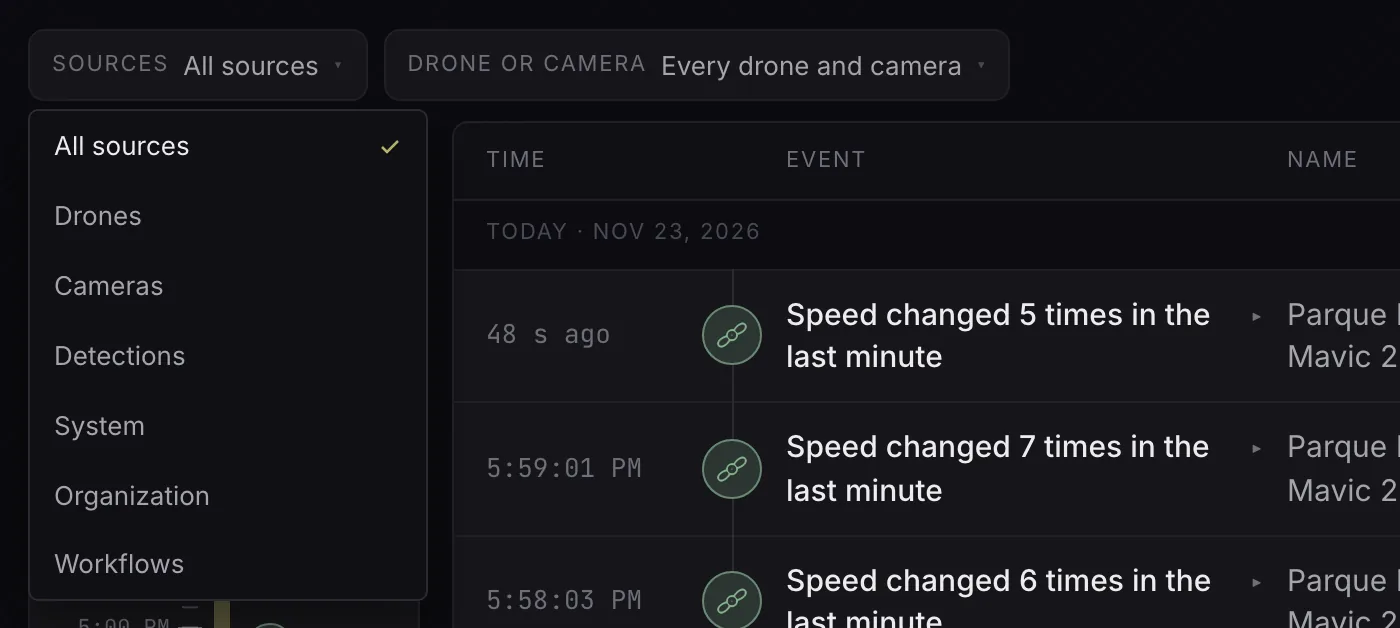
- Sources: All sources, Drones, Cameras, Detections, System, Organization or Workflows.
- Drone or camera: one or several, under "Every drone and camera".
A filter applies to the live events and to the earlier ones alike.
Open the thing an event is about
A line links to what it points at: View flight, View detection, View workflow, or Watch, which shows only while the drone or camera is live.

Many changes, one line
When a drone's speed, status or flight mode changes many times in one minute, the Timeline shows one line, for example "Speed changed 12 times in the last minute". Press it to open the individual changes. A drone or camera that starts streaming is one line too, even when two parts of the platform report it.

See the last 24 hours at a glance
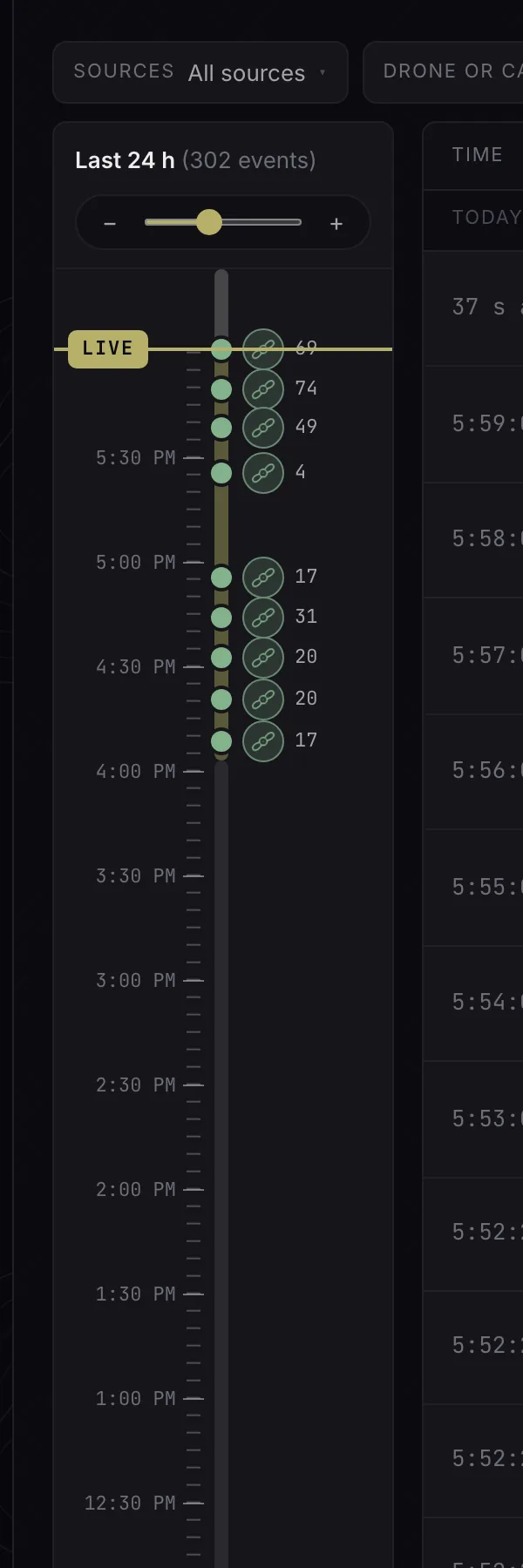
- The ruler on the left holds the last 24 hours to scale, each event at its own moment, so a quiet stretch shows as a gap. Drag or scroll it to move through the day; the list follows. Press a mark to go to its event.
- Event types names the colour of each kind of event.
- Notable events lists the ones worth a look in the days loaded, such as a workflow that fired as an alert.
Go back further
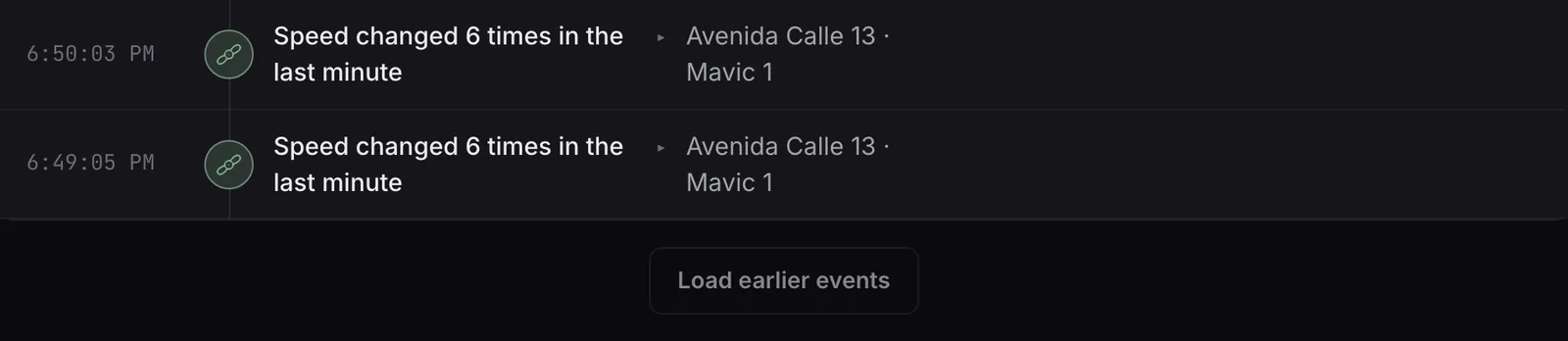
Below today's events come yesterday's, then earlier days by date. At the bottom, Load earlier events reads further back. Events are kept for your plan's retention window.
On a phone
Each event takes two or three lines, with its time and link on the right.
Related: Workflows, whose fires show here.