This page is for two people:
- an Org Admin who sets up drone types in Nebli Drones;
- a pilot or camera operator who flies or aims a relay drone from its live page with a gamepad.
A gamepad profile says which action each stick, trigger and button performs. Each drone type names one profile, so every drone of that type, and every new one, uses the same layout. An organization that changes nothing keeps Nebli's layouts.
Gamepad profiles come with every plan. What each person can do with them depends on their role, as the next section says.
What you need: a gamepad your browser reads in its standard layout, as Chrome and Edge read most Xbox-style controllers. If the dashboard does not recognise a gamepad, its Gamepad card says so.
How it fits together
- Profiles are made and edited in Settings › Gamepad profiles. That tab never assigns a profile.
- A drone type picks its profile in its own Edit type dialog, under Settings › Drone types.
- The live page shows the layout in effect on the drone's Gamepad card.
Everyone in the organization can open the Gamepad profiles tab. Only Org Admins make, copy, edit and delete profiles, and only Org Admins open a drone type's Edit type dialog.
Two kinds of profile
Each profile is for one kind of aircraft:
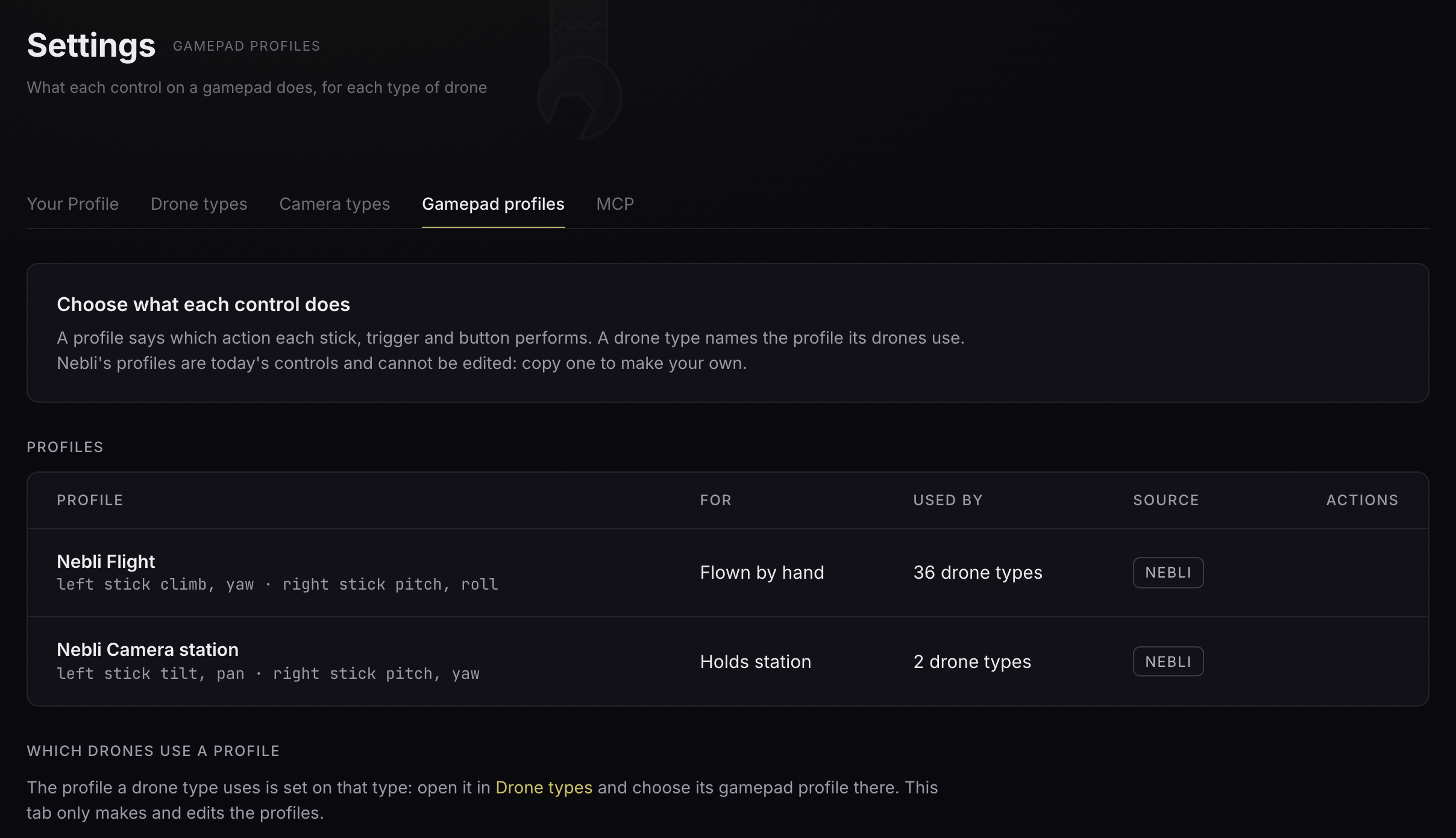
- Flown by hand: an aircraft a pilot flies. The profile must put climb, yaw, pitch and roll each on exactly one control.
- Holds station: a drone that holds its position, such as a tethered aerostat, where the gamepad mostly aims the camera.
A drone type with Tethered on takes profiles that hold station. Every other drone type takes profiles flown by hand.
Nebli has one profile of each kind: the layouts every gamepad used before profiles existed. They cannot be edited. To change one, copy it and edit the copy.
Make a profile
- In Settings, open Gamepad profiles. The list shows each profile with what it is for, where it comes from (NEBLI for Nebli's, YOURS for your organization's), and Used by: how many drone types use it.
- Press + New profile and answer What is the new profile for? A new profile starts from Nebli's profile of that kind. You can also start from any profile in the list with Copy on its row; the copy is named "Copy of" and the original name.
- Enter a Profile name.
- For each control, choose its Action. Reverse turns the control's direction around, where a direction applies. The picture of the controller beside the table follows the same rows. Press a control on a plugged-in gamepad to find its row.
- Press Save profile. The change applies the next time someone takes control.
The actions are Climb, Yaw, Pitch, Roll, Pan the camera, Tilt the camera, Zoom in and out, Point the camera ahead, Infrared on or off, Infrared calibration and Nothing.
A profile flown by hand is not saved until climb, yaw, pitch and roll are each on exactly one control. The editor names the action that needs fixing:
- "Climb is not on any control"
- "Climb is on two controls"
A profile works on every drone type of its kind. An action a drone cannot perform is skipped on that drone, and the pilot's card says so.
To change one of your organization's profiles, press Edit on its row. To delete one, open it, press Delete and confirm "Delete Harbour patrol?". A profile that a drone type still uses cannot be deleted: give the type another profile first.
Choose the profile for a drone type
- In Settings, open Drone types and press Edit on the type.
- Under Gamepad profile, choose a profile in What a gamepad does on every drone of this type. Only profiles of the type's kind are offered: with Tethered off, profiles for aircraft flown by hand; with Tethered on, profiles for drones that hold station.
- Check the line In effect now. It names the profile and where it comes from: your organization's choice, this type's default, or Nebli's for this kind of aircraft. If the type cannot do some of the profile's actions, the dialog lists them after Not on this type.
- Save. Every drone of the type, and every new one, uses the profile from the next time someone takes control.
On one of Nebli's drone types, the dialog says "Nebli maintains this type: only its gamepad profile can be changed here." Every other field reads only. To go back to Nebli's layout on any type, choose Nebli's profile again.
On one of your organization's own types, turning Tethered on or off changes the type's kind. The dialog then asks you to choose a profile of the new kind before it saves.
A drone with no type uses Nebli's profile for its kind.
On the live page
On a relay drone's live page, the Gamepad card names the layout in effect, for example "Layout: Harbour patrol", and lists what each control does:
- Two controls that do one thing share a row, such as "Triggers: Zoom in and out".
- A control with nothing on it has no row.
- An action this drone cannot do keeps its row, marked not on this drone, and pressing that control sends nothing.
Changes wait until you let go. If your organization changes the layout while you hold control, nothing changes under your hands. The card says "Your organization changed this layout. The new one applies when you next take control."
When the layout cannot be read, the card says "The gamepad layout could not be read, so the gamepad is not used. The on-screen controls and the keyboard still work." It then offers no way to take control with the gamepad.
When a controller is not recognised, the card says "This controller is not recognised" and "Nebli does not know how its buttons are laid out, so it is not used. The on-screen controls and the keyboard still work."
A profile changes only what each control does. It does not change who may take control of a drone.